CDNShark Sync
Keep a folder on every device in step — with your CDNShark plan storage, or with an S3 bucket you already own. Turn on end-to-end encryption and your files are sealed before they leave the machine, with a key only you hold.
Included with every CDN plan. Or run it entirely on your own storage.
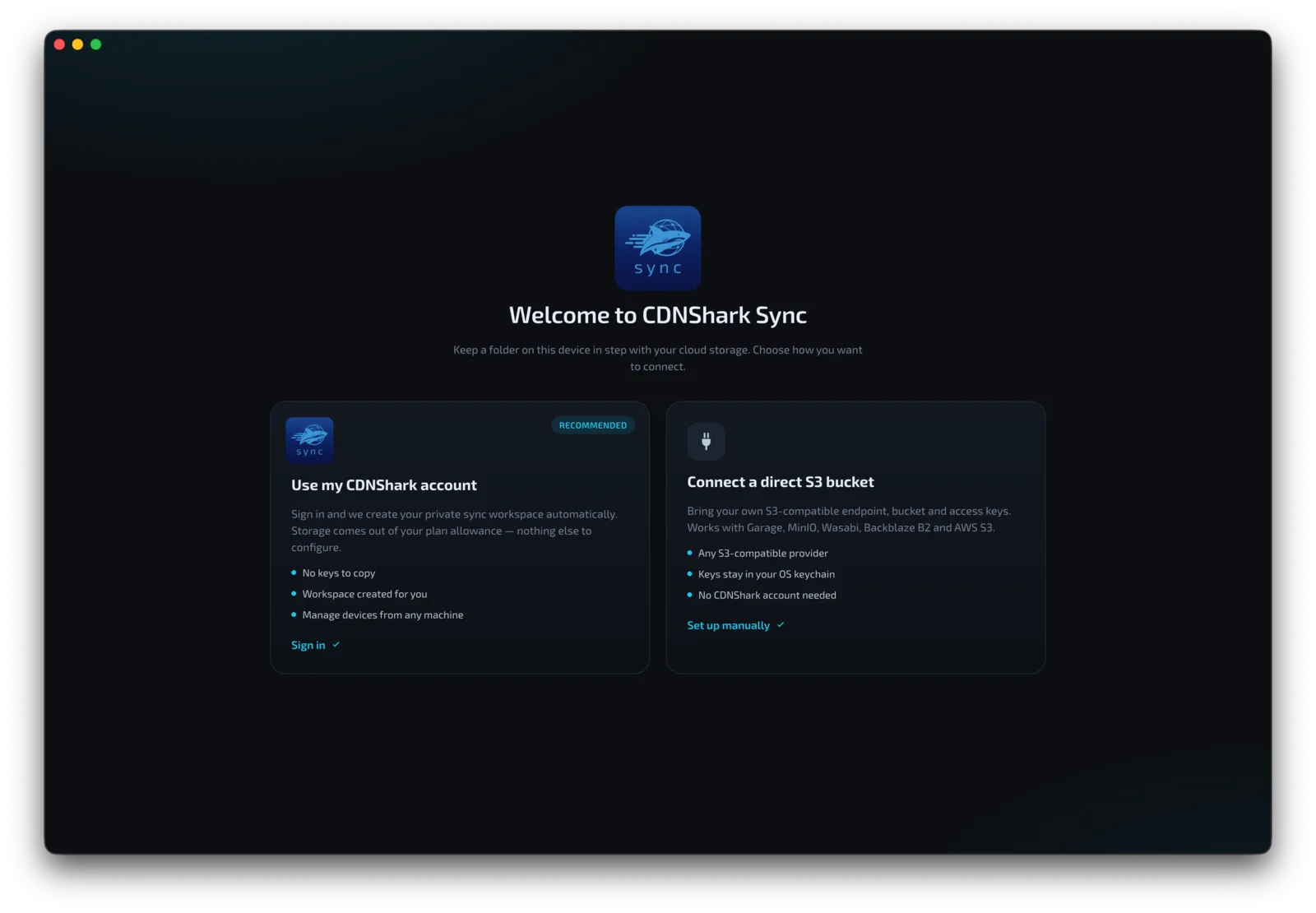
Two ways to connect
Pick one when you install the app. You can switch later without losing your files.
Sign in and your private sync workspace is created automatically. Nothing to configure, no keys to copy, and storage comes out of the allowance already included with your plan.
- Zero setup — sign in and choose a folder
- Storage counts against your plan allowance
- Manage and revoke devices from any machine
Already have object storage? Point CDNShark Sync straight at it. Enter your endpoint, bucket and access keys, and the app syncs to storage you own and control.
- Works with Garage, MinIO, Wasabi, Backblaze B2 and AWS S3
- No CDNShark account required
- Your keys are stored in your operating system keychain, never in a plain file
- You keep full control of the data and the bill
Either way the app talks to storage directly. CDNShark is never in the data path — your file contents do not pass through us.
What you get
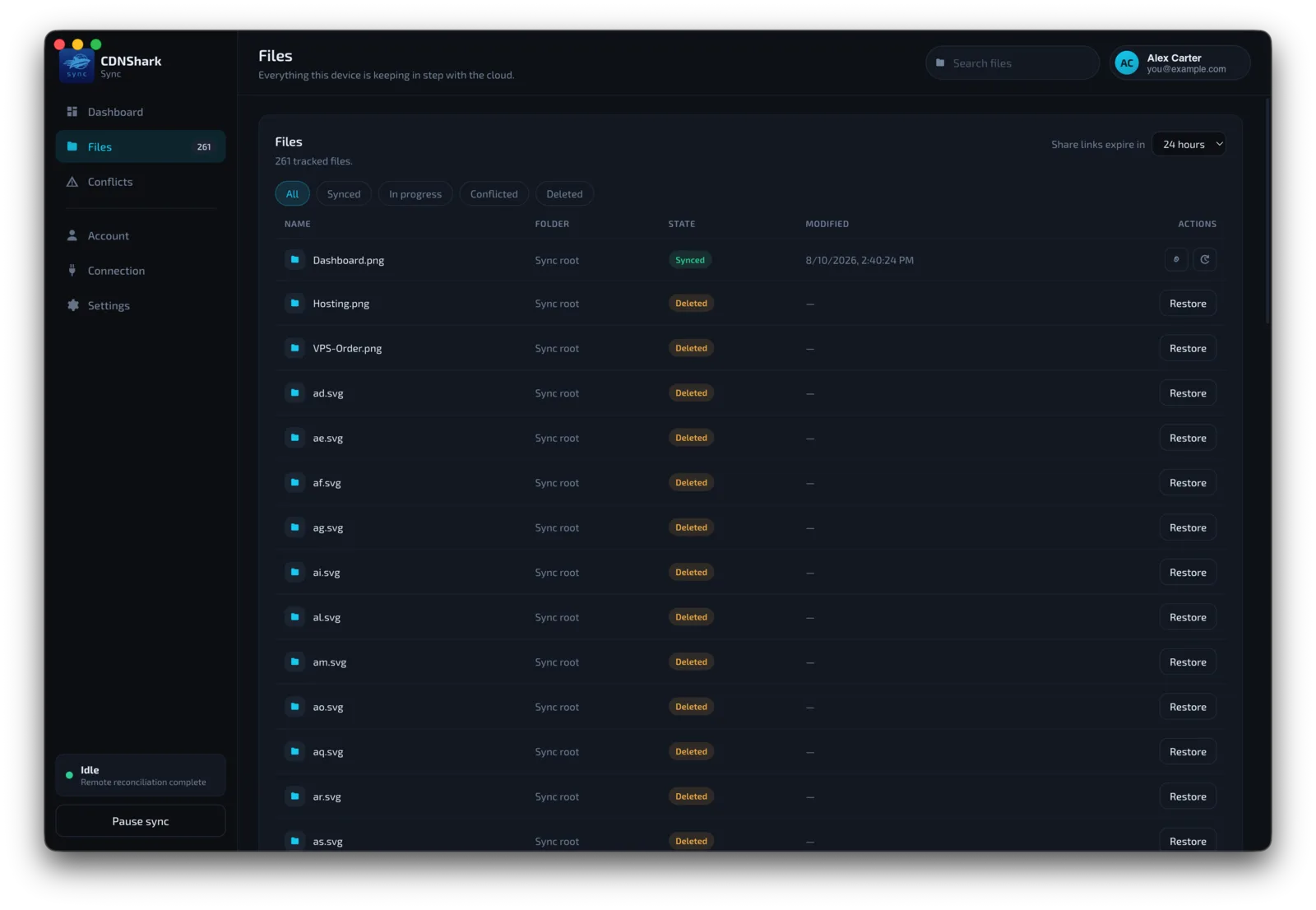
Drop a file in your sync folder and it appears on your other devices. Changes are detected as they happen, not on a timer.
Earlier revisions are retained, so an accidental overwrite is a couple of clicks to undo rather than a support ticket.
When the same file changes in two places, both versions are kept and you choose — nothing is silently overwritten.
Sync in the clear, or seal every file on your device before upload. With end-to-end the key is locked behind a passphrase we never see — so we cannot read your files, and we cannot reset it for you.
Share any file with a signed link that expires after 24 hours or 7 days. No public bucket, no permanent URL. (Off on encrypted workspaces — a link to sealed bytes is no use to anyone.)
Access keys, device tokens and your encryption key live in your OS keychain — Keychain on macOS, Credential Manager on Windows.
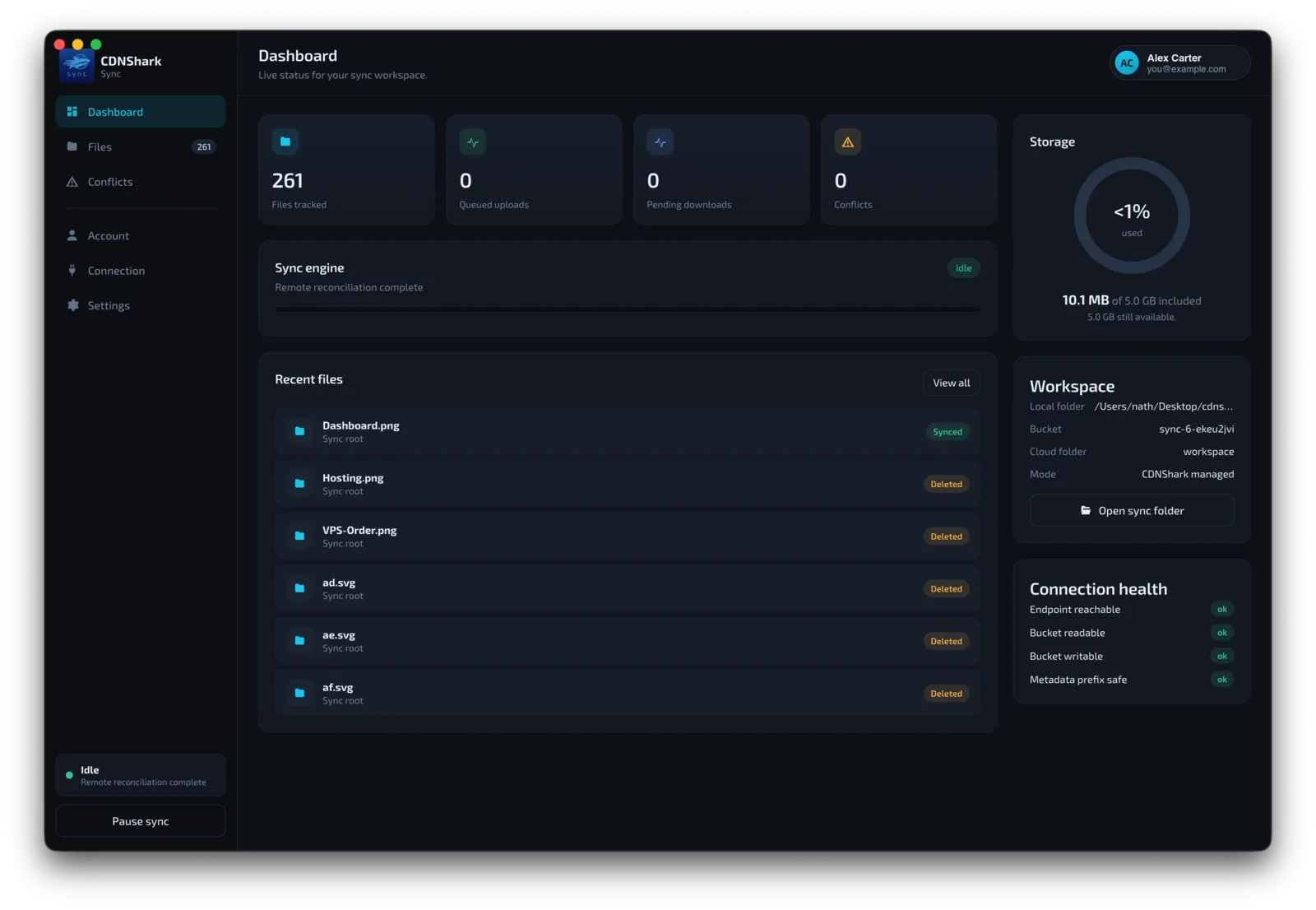
Closing the window keeps syncing in the background. Status, pause and your sync folder are one click away.
How it works
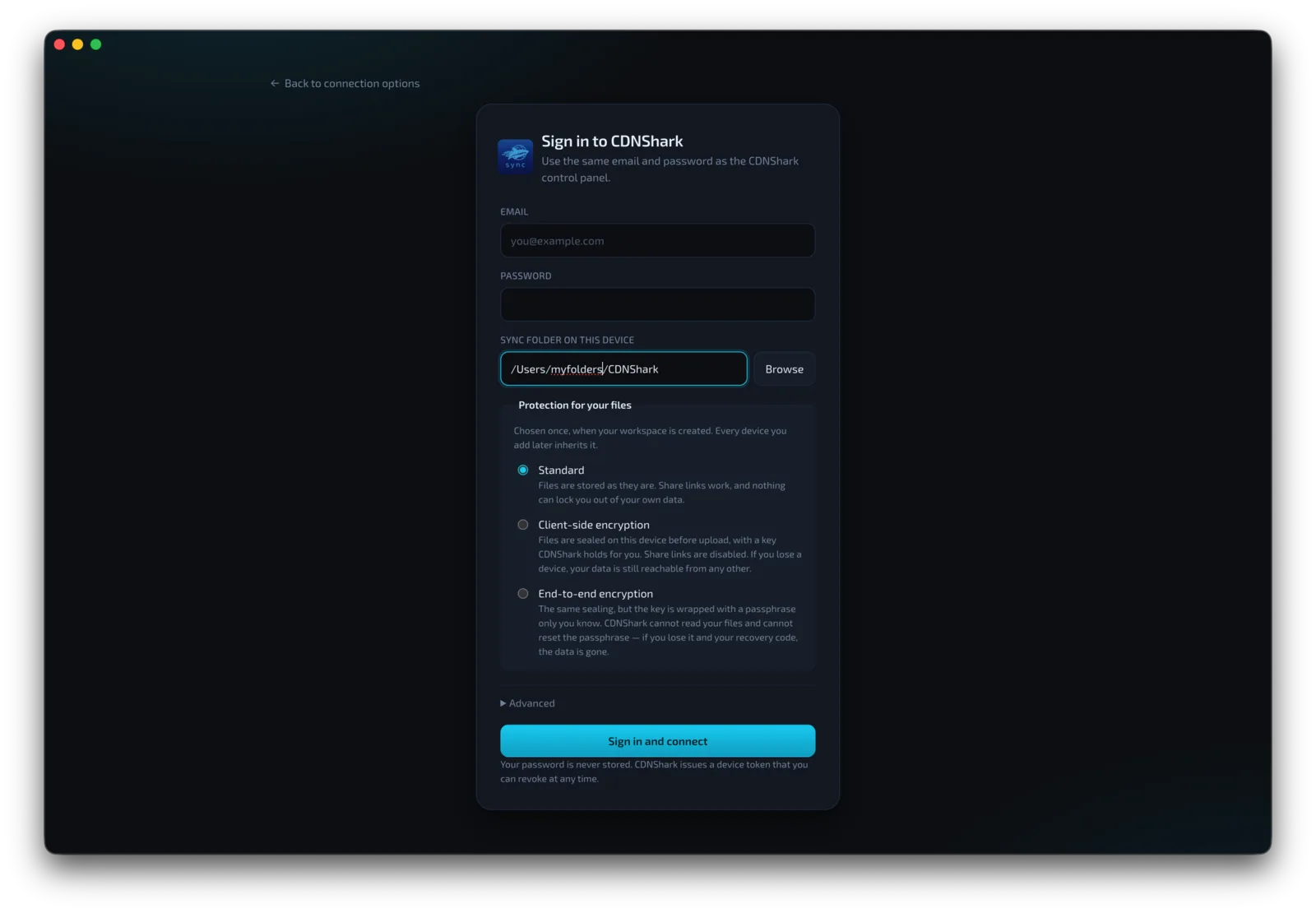
Download for macOS, Windows or Linux. On first run, pick your CDNShark account or Direct S3, choose the folder you want synced, and choose how it should be protected.
Work normally. Files are uploaded as they change, and pulled down on your other devices — with the version history building quietly behind you.
See every signed-in device and revoke any of them instantly. Sign out and your local files stay exactly where they are.
Choose how your files are protected
You pick this once, when you first set up. Every device you add afterwards follows the same rule — and because it decides how every stored file was written, it cannot be switched on an existing workspace.
Files are stored as they are in your own private bucket. Share links work, and nothing can ever lock you out of your own data.
- Share links available
- Nothing to remember
Every file is sealed on your device before upload, so storage only ever holds ciphertext. We keep the key for you, which means a forgotten password is never fatal.
- Protects against a storage-side breach
- We can still help you get back in
- Share links turned off
The same sealing, but your key is locked with a passphrase that never leaves your device. We cannot read your files, and we cannot reset your passphrase for you.
- Only you can open your files
- One-time recovery code at setup
- Share links turned off
| Standard | Client-side | End-to-end | |
|---|---|---|---|
| Who holds the key | No key needed | CDNShark, for you | You only |
| Can CDNShark read your files | Yes | Yes | No |
| Readable if our storage is breached | Yes | No | No |
| Private share links | Yes | No | No |
| If you forget your passphrase | n/a | We can get you back in | Recovery code, or the data is gone |
Encryption applies to workspaces on your CDNShark plan storage. In Direct S3 mode you already own the bucket and the keys, so protection there is whatever your provider offers.
How end-to-end encryption works
No jargon, no hand-waving. Here is exactly what happens and exactly what we can see.
The app generates a random encryption key locally and locks it with your passphrase. We receive the locked version and nothing else — not the key, not the passphrase.
Each file is encrypted with AES-256-GCM on your machine, then sent to storage. Anything intercepting or seizing that storage gets ciphertext and a tamper check that will not pass.
Sign in on another computer, enter the same passphrase, and it unlocks the same key. Nothing has to be transferred between your devices, and we never take part in it.
At setup you are shown a 40-character recovery code, once. It opens your workspace if you ever forget your passphrase — store it in a password manager, or print it and keep it somewhere safe. Using it sets a new passphrase and issues a fresh code, and your files never need re-uploading.
File contents are sealed. File names, folder structure, sizes and timestamps are not — they stay readable so your devices can work out what changed and when. If that matters for your use case, say so before you commit to it rather than after.
End-to-end means we hold nothing that can open your files. If you lose both your passphrase and your recovery code, your data is gone — there is no support ticket, no override and no back door, because building one would undo the entire point. If that trade sounds wrong for you, Client-side encryption gives you sealed storage with a safety net.
- Does CDNShark see my files? File transfers never pass through our control plane — the app talks to object storage directly. In account mode your files sit in a private bucket on our storage, so with Standard or Client-side encryption we could technically reach them; with End-to-end encryption we cannot, because we never hold a key that opens them. In Direct S3 mode we are not involved at all.
- What happens if I stop paying? Your local files are untouched — they are ordinary files in an ordinary folder. Nothing is held hostage.
- Is this end-to-end encrypted? It can be — choose End-to-end when you first set up. Your passphrase never leaves your device, so we cannot read your files and we cannot reset it for you: if you lose both the passphrase and your recovery code, the data is gone. That is the trade, and we would rather say it plainly than surprise you later.
- What is still visible with encryption on? File contents are sealed. File names, folder structure, sizes and timestamps are not — they stay readable in the workspace index so your devices can work out what changed.
- Can I use it with my existing bucket? Yes — that is exactly what Direct S3 is for, and it works with any S3-compatible provider.
See it in action
Real screens from the app. Click any shot to enlarge.
Download CDNShark Sync
Free with every CDN plan. Install it, sign in, and you are set up in under a minute.
Current version v1.0.3.
Signing in needs an active CDN plan. Prefer your own storage? Direct S3 mode works with no CDNShark account at all.
One folder. Every device.
Included with every CDN plan — or point it at storage you already own.
Get Started Talk to Us